
Adding and editing assets
Navigate to the Asset list page from the left.
To create a new asset card, click Add new on the asset list.

The asset's Name is automatically generated based on the make, model, and registration number. You can edit the name.
In the Short name field, you can create an identifier of up to 7 characters that is displayed on the asset’s map pin.
The IMEI code of the tracker is entered in the Tracker field.
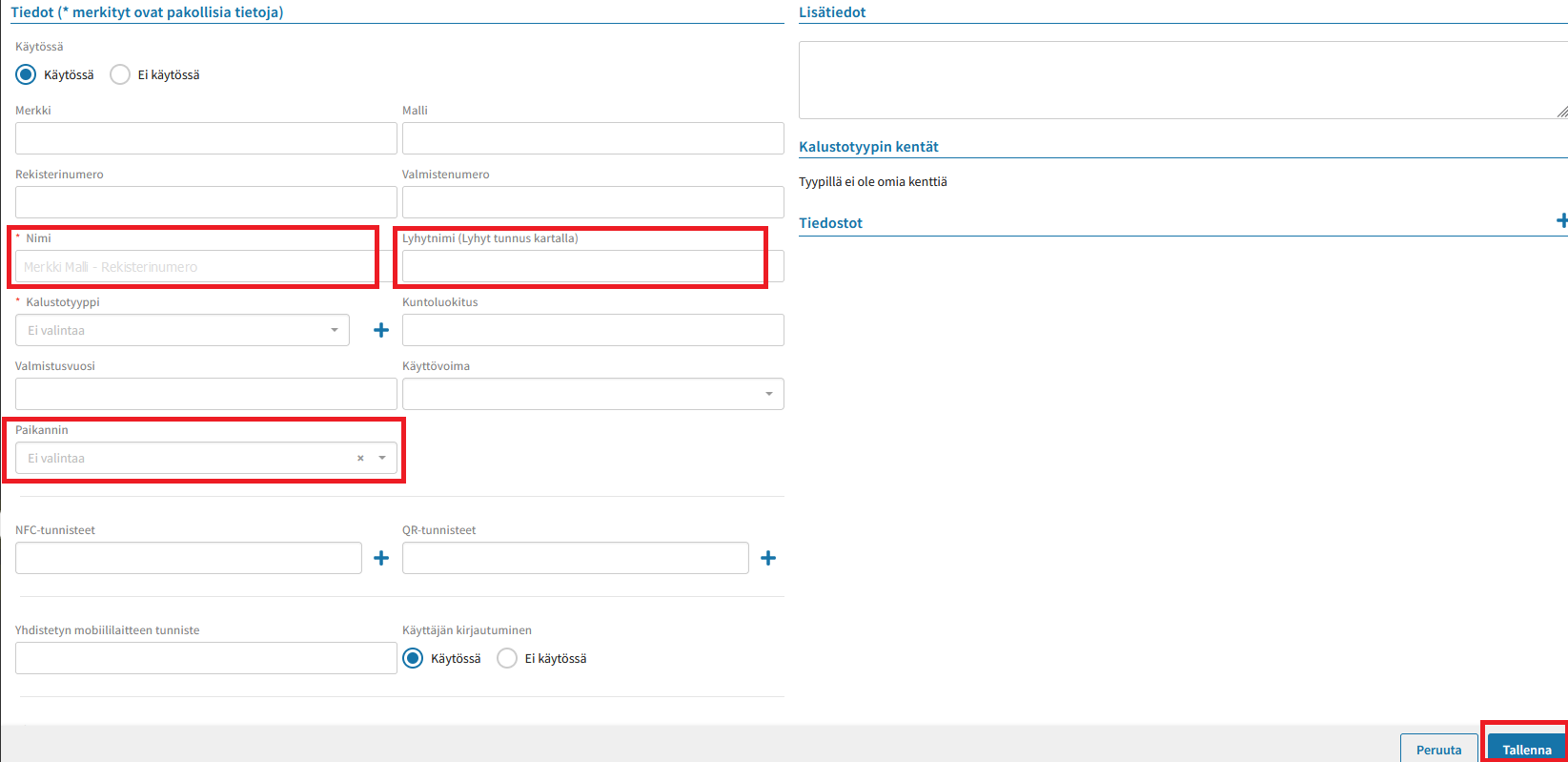
If no tracker is linked to the asset, users cannot log in to the asset.
Once the desired information is filled out, click Save in the bottom right corner.
Adding users to an asset
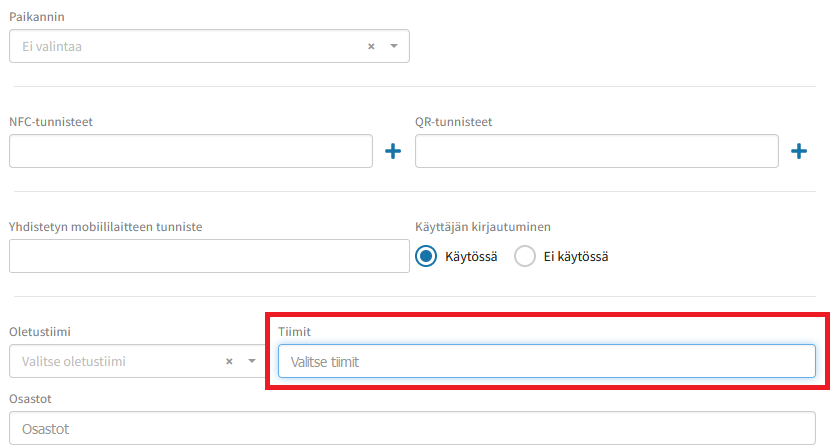
You can add individual users or teams to an asset, granting those users permission to view and log in to the asset.
A team is added in the Teams field on the asset card. An asset can belong to multiple teams at the same time.
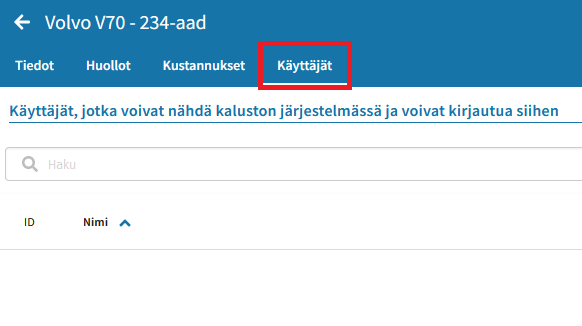
To add an individual user to an asset, click the asset in the asset list.
Go to the Users tab.
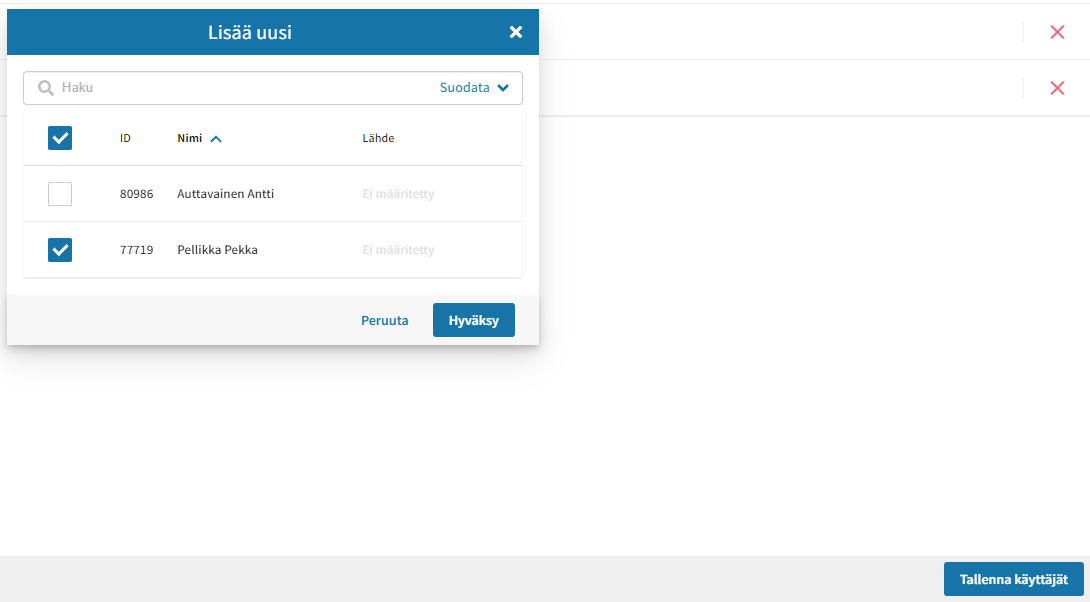
Select the desired users from the list by clicking the empty box next to the user's name. Finally, click Accept.
Once the desired users have been added to the asset, click Save Users in the bottom right corner.
Editing asset details
You can edit an asset's details by clicking the name of the asset you want to modify on the asset list.
When the asset card opens, click the Edit button in the bottom right corner.
Once you have made the necessary changes, click Save in the bottom right corner.