Recording and processing defect notifications
A defect notification indicates a defect detected in an asset. A notification is automatically created from a defect found during a pre-use inspection, or it can be created manually. Notifications are processed under Assets → Defect notifications by moving them to the maintenance work queue or to a work order, or by closing them.
Permissions
Permission | What it allows |
|---|---|
Defect notifications – View | Viewing defect notifications for visible assets |
Defect notifications – Add | Creating defect notifications and editing own open notifications |
Defect notifications – Edit | Editing all open defect notifications |
Defect notifications – Process | Changing status and moving to the work queue or to a work order |
Defect notifications – Delete | Deleting defect notifications |
Adding to the work queue requires, in addition to processing rights, the Maintenance - Add permission. Creating a work order requires, in addition to processing rights, permissions to view, add, and edit work orders.
Creating a defect notification, V3
- Open Assets→ Defect notifications and click Add new.
- Select Assets.
- Write a Description of the defect.
- Select Impact: No action required, Action required, or Prevents use.
- Add Attachments if necessary, such as photos.
- Save.
The source of a manually created notification is Manual
Defect notification list
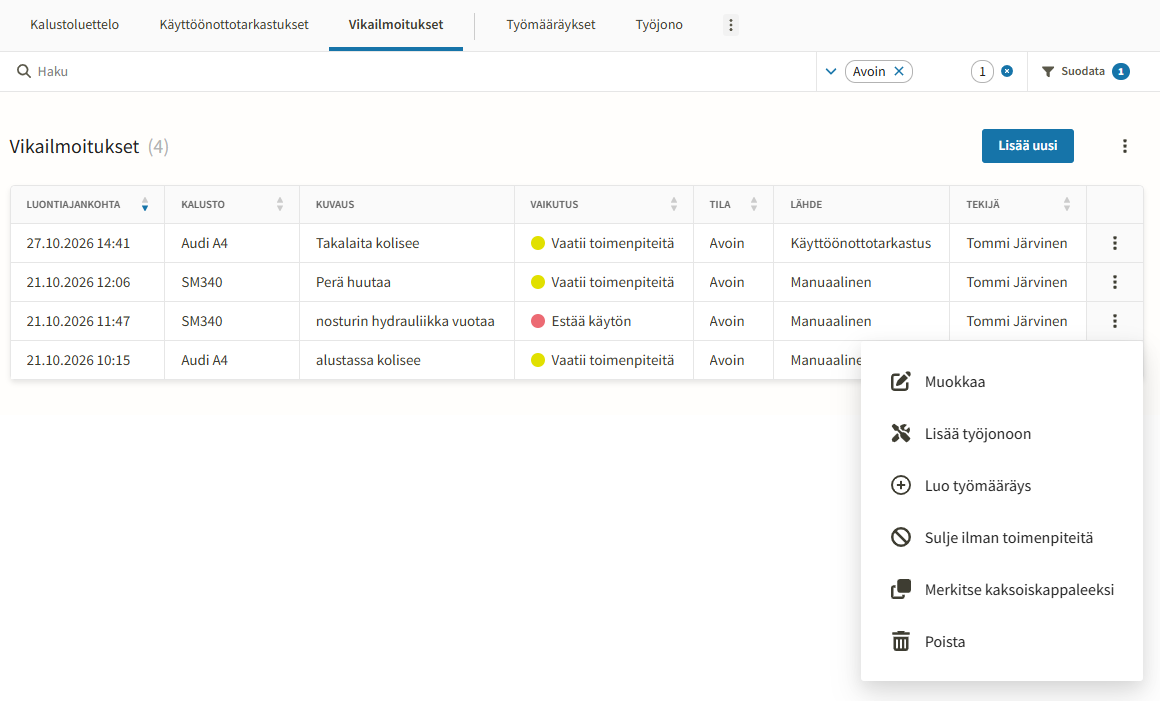
The columns on the list are Date created, Asset, Registration number, Description, Impact, Status, Work order, Source, User, and Attachments. The list can be filtered by status, impact, source, and users.
Source | Where the notification comes from |
|---|---|
Manual | The user created the notification manually |
Pre-use inspection | The notification was generated from a defect marked in an inspection |
Defect code | The notification was generated from a vehicle defect code |
A notification generated from an inspection displays the Inspection item, which is the question where the defect was recorded, along with the Open pre-use inspection button. If an impact has not been recorded, it reads Not assessed.
Processing a defect notification
Open the notification from the list and check the description, impact, and attachments. Then select one of the following:
- Process → Add to work queue: A maintenance task is created in the work queue for the asset. The name and description of the task are taken from the notification. The notification status changes to In work queue.
- Process → Create work order: A new work order opens with the notification added as a line item. When the work order is saved, the notification status changes to In work queue.
- Close without action: The defect does not require repair.
- Mark as duplicate: The same defect has already been reported.
Save any changes before processing, as the job is named after the saved description. The same actions are also available from the row actions in the list.
For a notification in the work queue, a link to the task (Show in work queue or Show in maintenance history) or to the work order (Open work order) is displayed.
Statuses
Status | Meaning | How the status is reached |
|---|---|---|
Open | Pending processing | New notification, reopened, or task deleted |
In work queue | Repair is in progress | Added to work queue or work order |
Repaired | Defect has been repaired | Task is marked as completed |
No action | Closed without repair | Close without action |
Duplicate | Same defect has already been reported | Mark as duplicate |
The statuses Repaired and In work queue follow the task status automatically:
- If a completed job is reopened, the notification returns to the In work queue status.
- If the task associated with a notification in the work queue is deleted, the notification returns to the Open status.
- Once an issue is marked as Repaired, the notification remains Repaired even if the task is deleted.
A notification with the status No action or Duplicate can be restored to open (Restore to open).
Editing and deleting
The reporter can edit their own notification as long as it is open. Users with edit permission can edit all notifications. A closed notification (Repaired, No action, Duplicate) cannot be edited by anyone.
Only notifications with the status Open, No action, or Duplicate can be deleted. Notifications processed through a task are retained for history.
Defect notification (mobile)
A driver can create a defect notification in the mobile app in two ways: by reporting a defect during a pre-use inspection or by creating a separate notification. Creating a separate notification requires the Defect notifications - Add permission.
- Open the asset card in the mobile app and select Add defect notification.
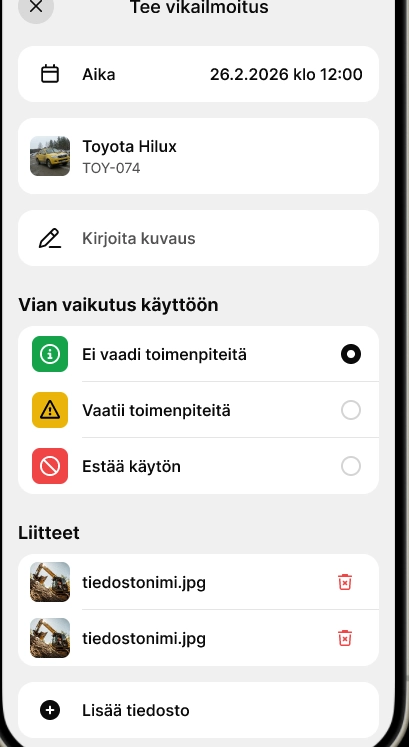
- Write a description of the defect.
- Select the impact: No action required, Action required, or Prevents use.
- Add photos or other attachments if needed.
- Submit the notification.
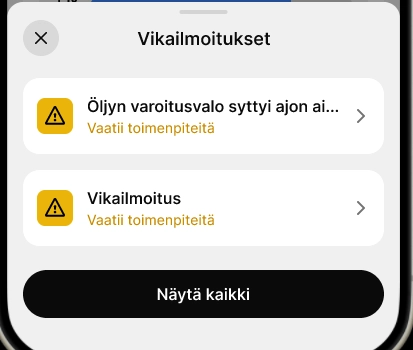
Defect notifications saved for an asset are displayed in their own section on the asset card until they are acknowledged and cleared in V3.
Defect notification form on mobile
Defect notifications submitted for an asset on mobile