
Asset list
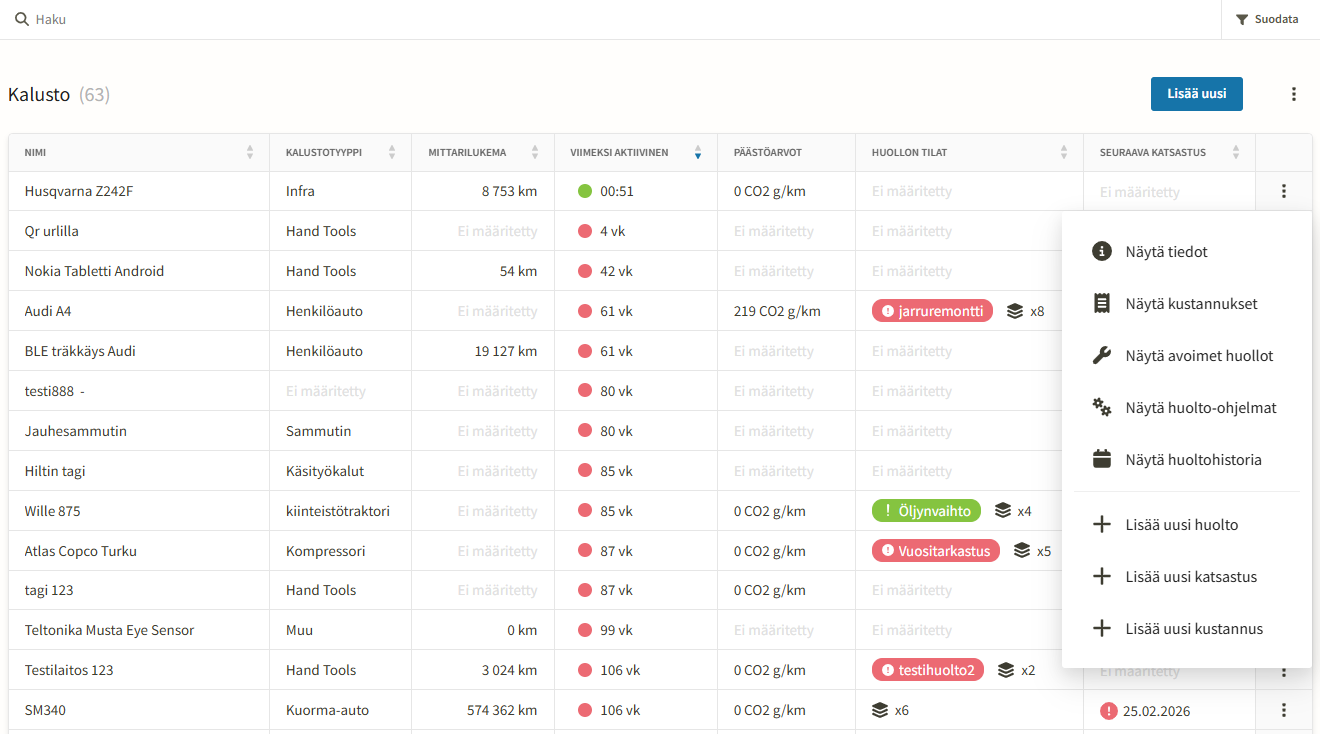
View, filtering, and search
The list displays assets line by line based on the selected columns. Use the search to quickly find a specific asset by its tag, name, or registration number, for example. With filters, you can narrow down the view by asset type, team, or condition classification, making it easier to get an overview of a specific asset group's status.
Editing visible columns
The columns in the list are customizable: you can choose which fields from the asset card are displayed directly in the list (e.g., make, model, asset type, condition classification). This allows you to tailor the list to fit the needs of your team or role.
Adding new assets
A new asset is added from the list manually by entering the general details (such as asset type, tag, name). Selecting the asset type determines which additional fields will appear on the asset card.
Bulk import from Excel
If you have a large amount of assets or your data is already in table format, you can import your assets all at once from an Excel file. The import process reads the columns in the file and maps them to the asset card fields, so the file structure should match the format expected by the system.
Export
You can export the asset list as a PDF, CSV, or Excel file for purposes such as reporting or external distribution. The export includes the columns currently visible in the list and applies any selected filters.