
Driving behavior report – Reviewing and processing events
The driving behavior report is designed to support reviewing and processing driving events recorded for a driver (speeding, idling, brakings, accelerations). Transport companies often review the driving behavior report with the employee at regular intervals to record notes and areas for improvement.
Driving events can be reviewed and marked as processed either day by day or for the entire reporting period, depending on the level of detail required by the customer.
Permissions
| Driving behavior – Review driving events | Allow viewing driving events |
|---|
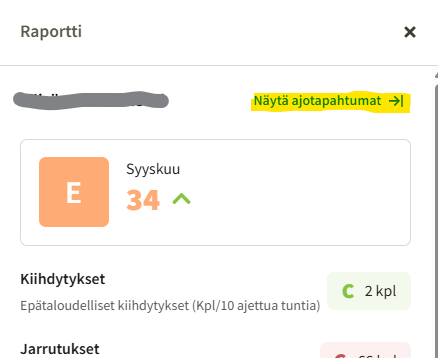
Report front page
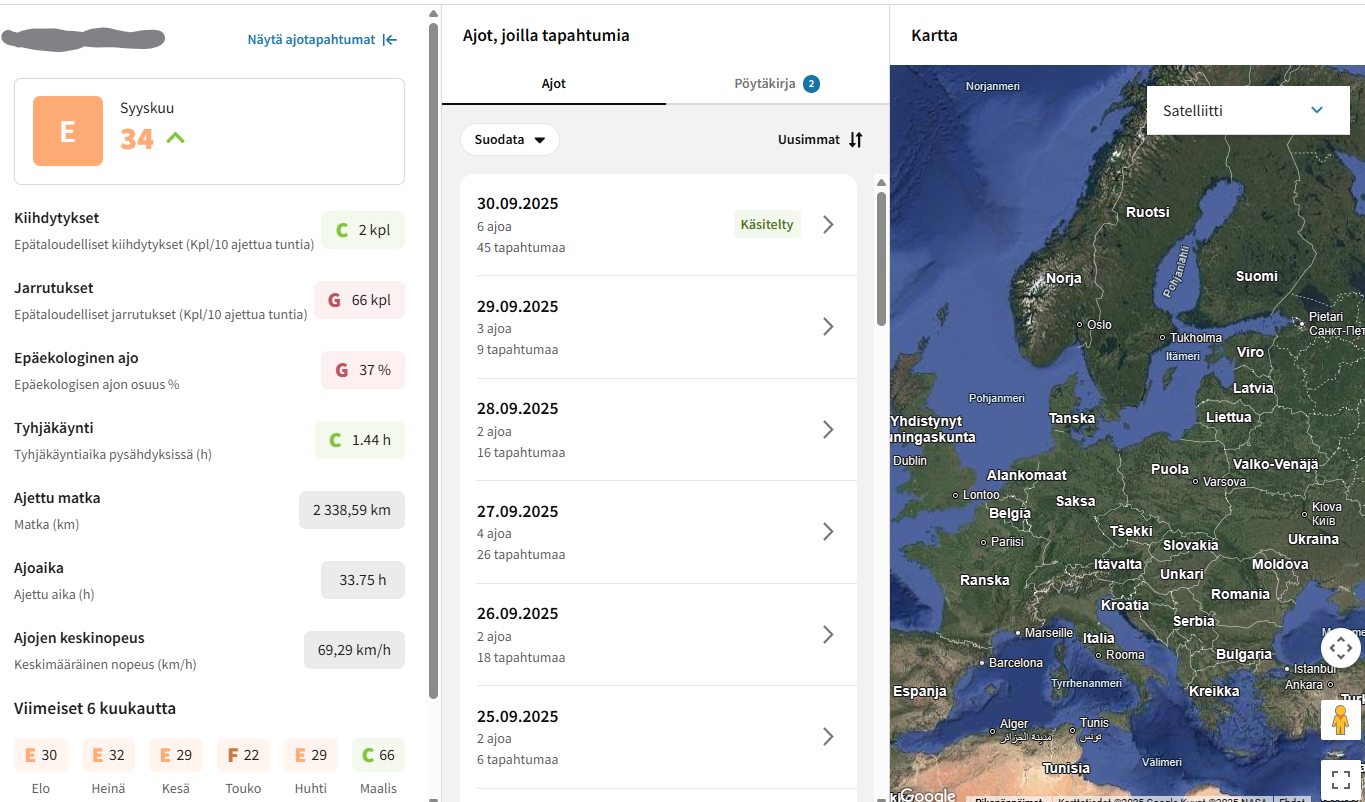
The driving event report front page lists the days of the reporting period along with their details:
- Number of trips
- Number of driving events
- Whether the day has been processed or not
- Notes can be entered on the report, and the report can be marked as processed for the entire reporting period at once.
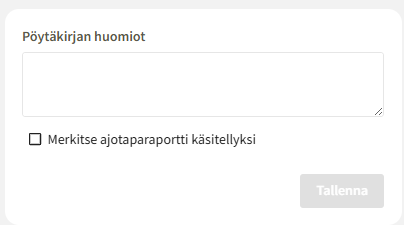
Minutes
- All comments entered for individual trips during the report review are compiled in the minutes.
Daily view
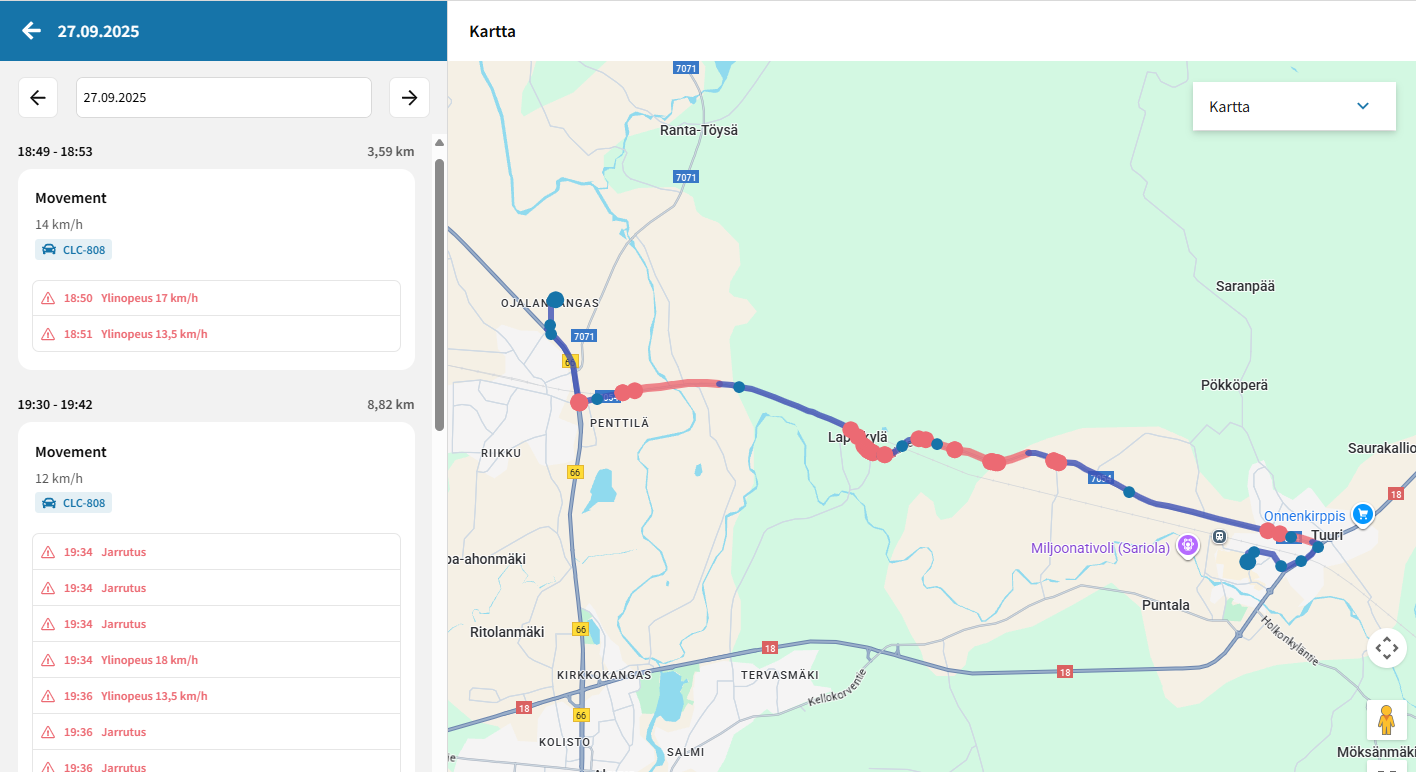
- The daily view displays all trips for the day, along with their events and the route
- Use the arrows to navigate to the next or previous day
- An individual trip can be viewed by clicking its header row
- An individual event can be viewed by clicking its row in the list or the route point on the map
- Route points that contain events are shown in red
- Speeding is displayed in red on the route line (the route line is red for sections where the speed limit was exceeded)
Event details
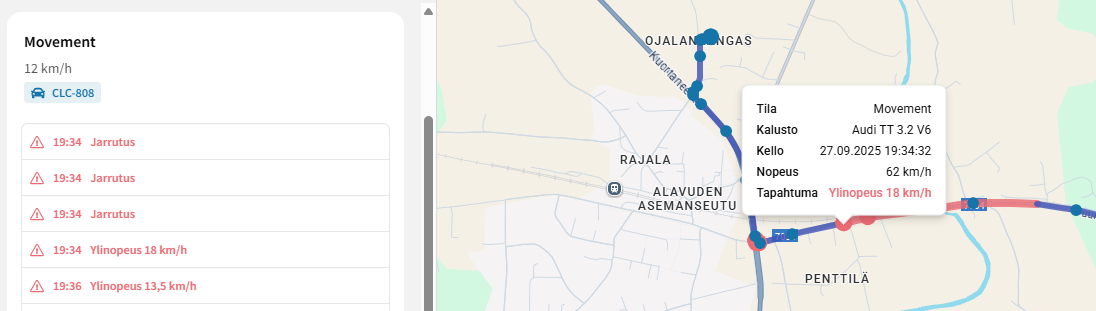
- The map info window displays the event type and additional details if available (such as idling duration, maximum speed over the limit), as well as the speed at the route point.
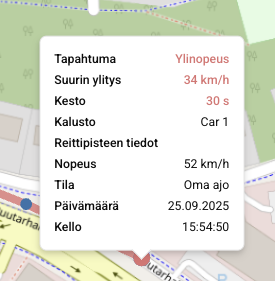
Speeding information
- Due to Google's licensing terms, speed limits cannot be displayed on the map.
- Because of this, the maximum speed over the limit and the speed at the route point are displayed.
Map user interface
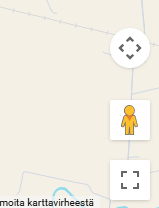
- The map supports Google navigation controls, such as zoom and pan, Street View, and full-screen view. Zooming also works with the right and left mouse buttons (double-click).
- Street View is especially useful for reviewing the event location and the risks associated with it.