
Creating and editing areas
In the navigation, click Map.
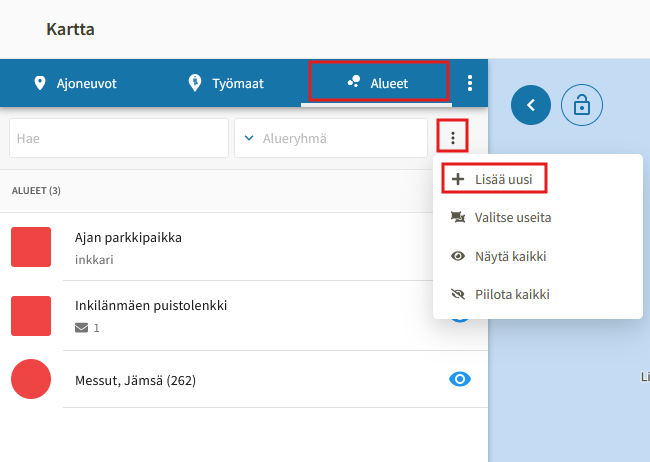
Go to the Areas tab.
You can create a new area by clicking the three dots next to the search fields > Add new.
Enter a Name for the area
You can choose whether to draw a polygon area or a circular area.

- Polygon area: You can draw an area by following the perimeter, such as the outer edges of a parking lot.
- Circular area: A circle-shaped area whose diameter can be adjusted while creating the area.
Once you have selected which type of area you want to draw, click Add area.
Zoom in on the map to the desired area and draw the area.
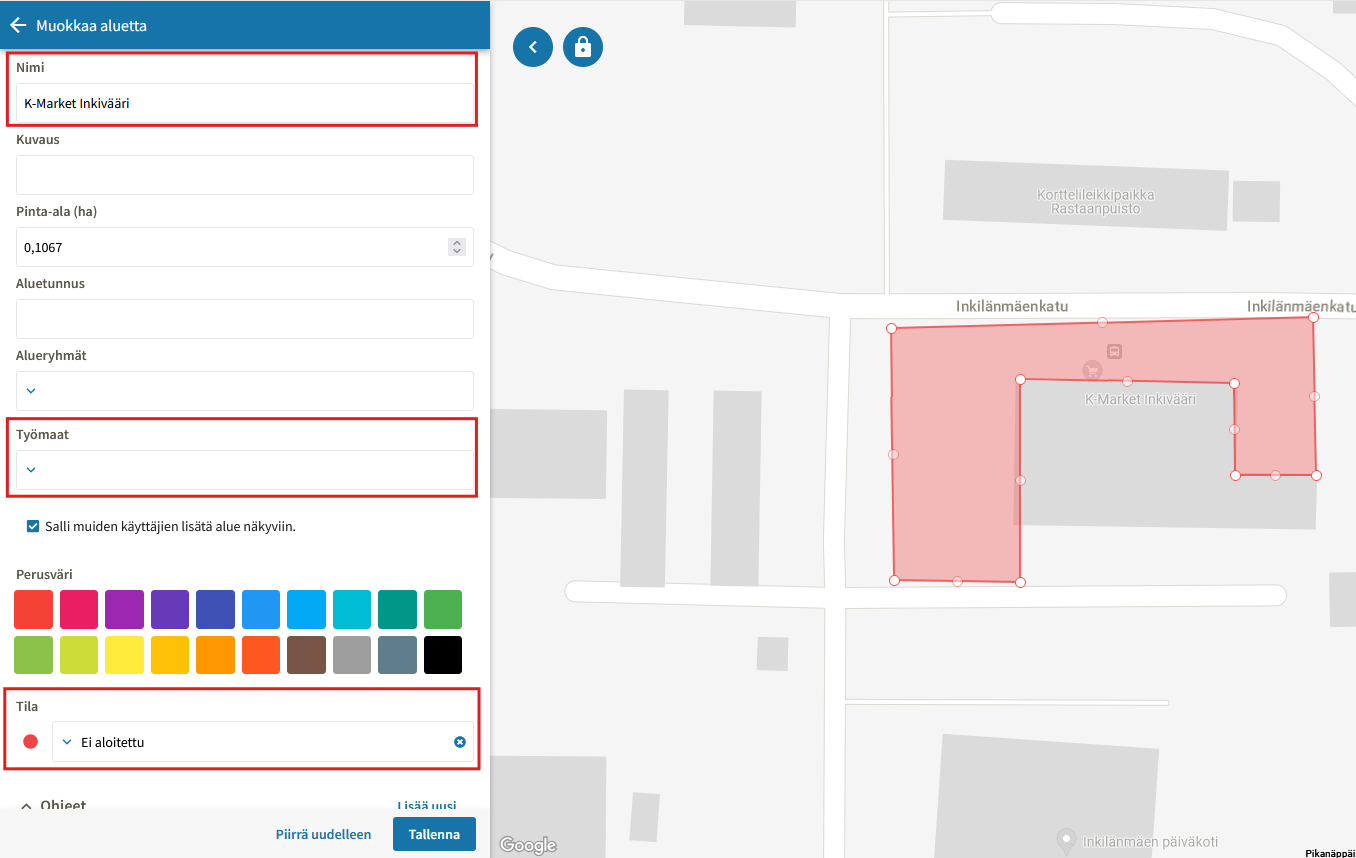
Fill in the area details:
- Name
- Worksite
- Status
- Area group
You can add instructions to the area either as general instructions or as working-status-specific instructions.
If a working status is assigned to an instruction, the status-specific instruction will be displayed when the employee enters the area and activates that working status.
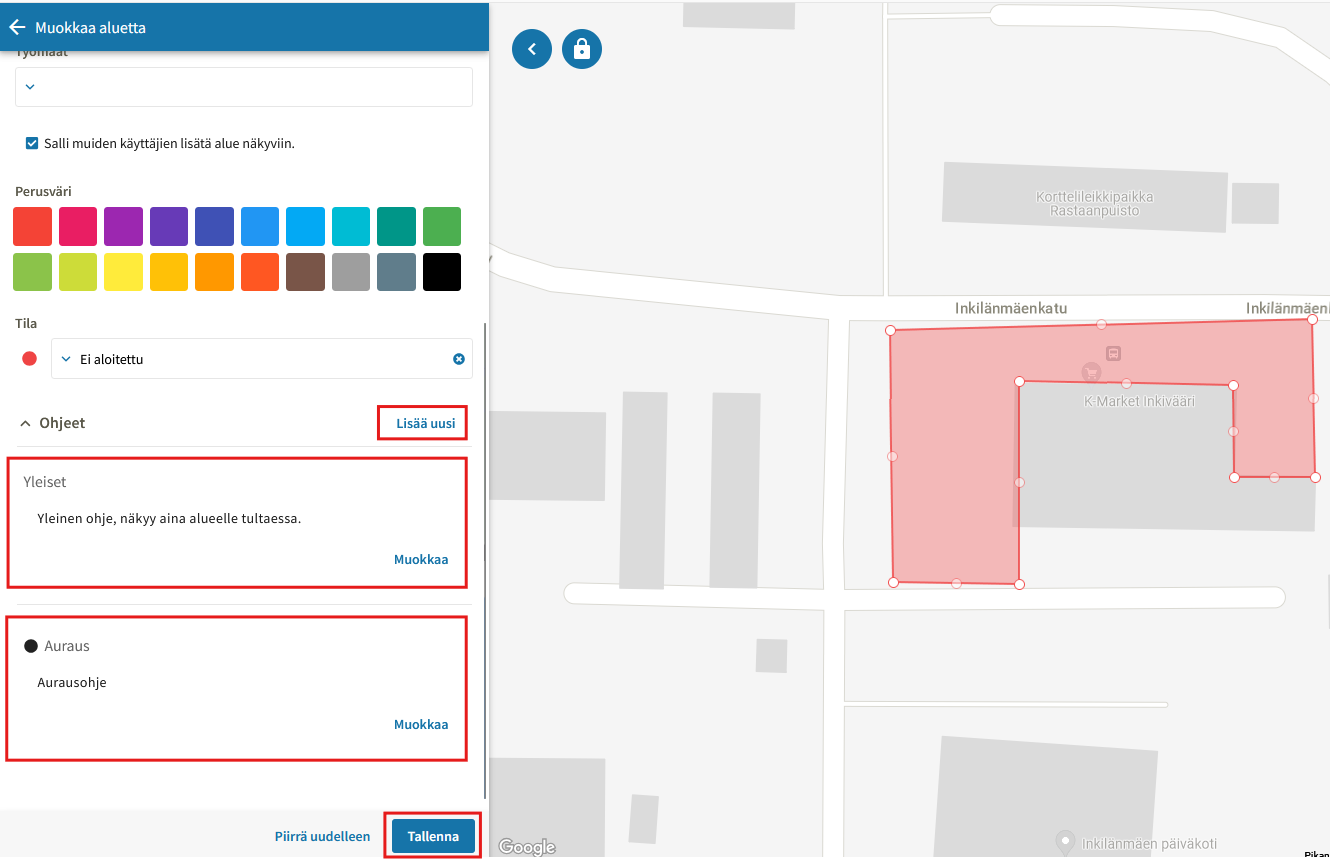
Finally, click Save.