Completing tasks
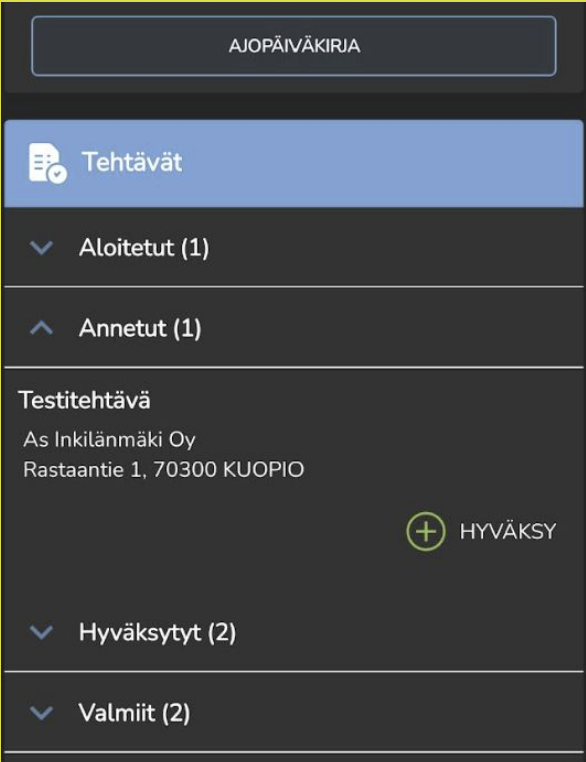
When a task is assigned to an employee, they receive a push notification on their mobile device that takes them directly to the assigned task in Kiho. The Tasks section is located at the bottom of the home screen on mobile devices.
1. At the very top of the home view, the active task is displayed if a task is currently in progress
2. Tasks always appear first under Assigned, and once the mobile user accepts the task, it moves to appear under Accepted.
3. When the task is marked as finished, it moves to appear under Completed.
Main task view
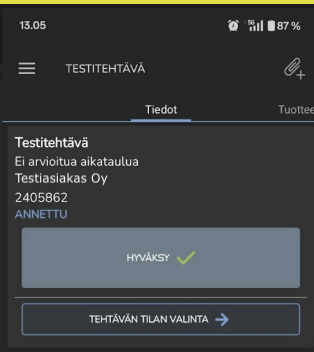
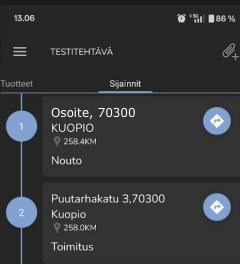
The task view includes three tabs: Details, Products, and Locations, where you can view and edit task information. For assigned tasks, details can only be edited by the mobile user when the task is active – that is, started.
1. Accept the task for execution by tapping Accept
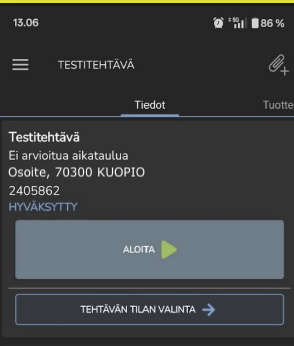
3. Once the task is completed, tap Completed in the same section
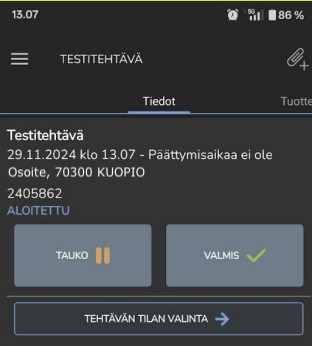
4. Add products assigned to the task from the Products tab. You can add new products to the task using the Create new product entry button at the bottom

5. From the Locations tab, you can view the task's location on a map
Recording product entries for pre-entered product
1. Tap the Create new product entry button below the product you want to record

2. Enter the product quantity on the line. You can also use the quick add buttons. Confirm by tapping Save.

3. The delivered quantity of the product will change in accordance with the entered amount
